

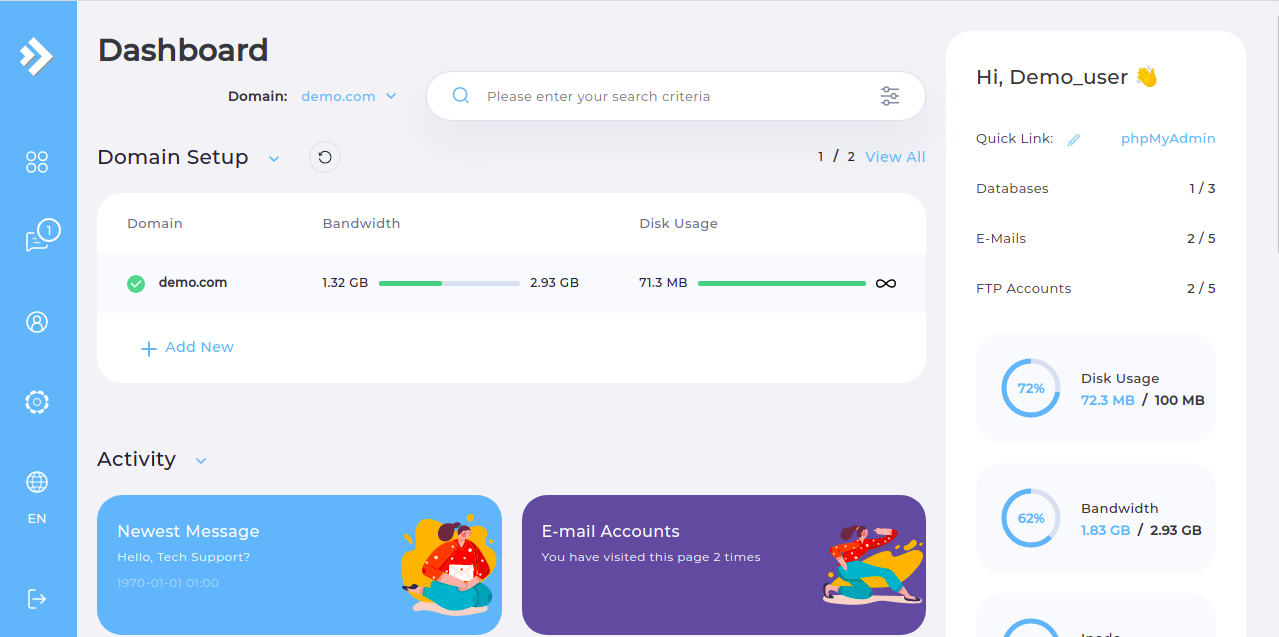
Step 2. Navigate to the "Catch All E-Mail" page.
Step 3. Select the checkbox next to the "address" field.
Step 4. Enter the email address to use for catch all email in the "address" field.
Now any messages sent to a non existent email using your domain name, they will be forwarded to the email address configured within the catch all email page.